How to create a Bible Verse slide in BibleSlides
A short guide for pastors and Bible teachers — add John 3:16 (or any passage), pick a translation, highlight key phrases, and preview practice mode before Sunday.
When you teach Scripture, what people see should be clear, readable, and keep the congregation in context as you move through a passage. Most presentation software was not built for that — which is why BibleSlides centers the Bible Verse slide type.
Your sermon notes and your slides live in one document, so they stay in sync. You never copy-paste from a separate Bible app mid-prep.
Watch the walkthrough
The video above walks through the full flow in about four minutes — from adding John 3:16 to presenting with practice mode.
Add a Bible Verse slide
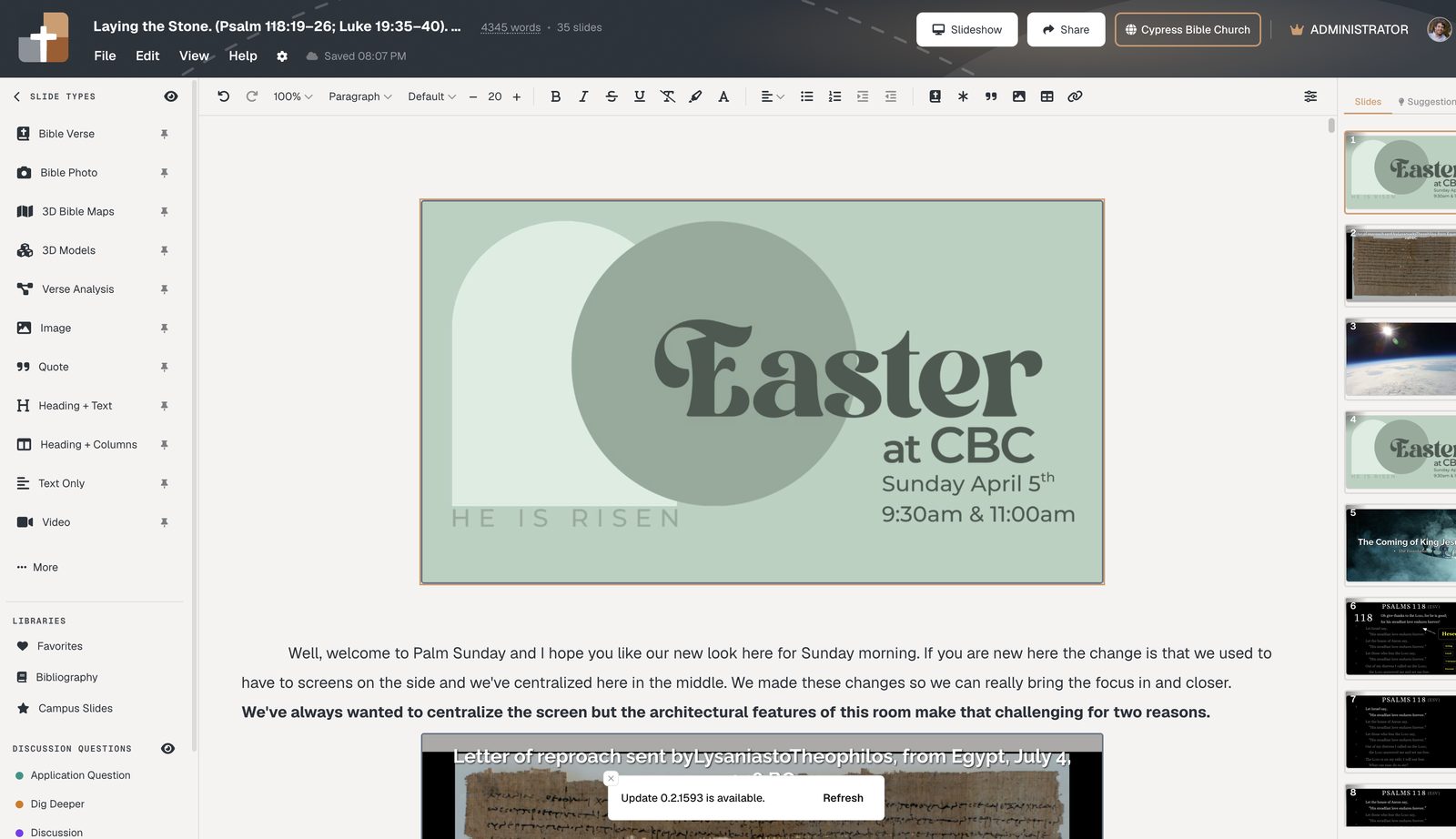
- Open your presentation in the editor.
- In the sidebar, choose Bible Verse under slide types.
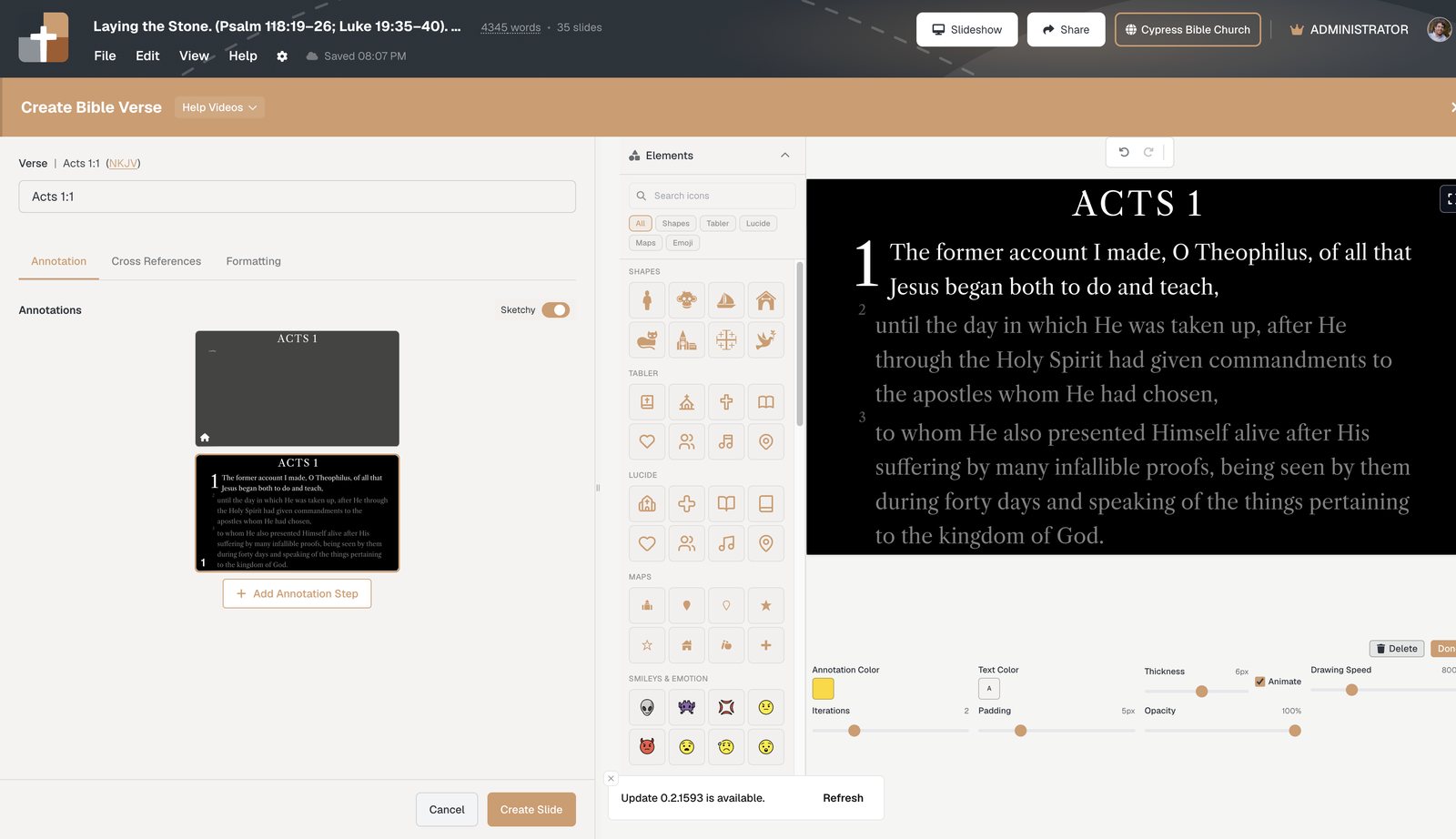
- Type a reference — for example
John 3:16. You do not need a special format; the app parses it for you. - Click Create slide.
The verse appears on your canvas and in your slide list. Your written notes can sit directly above or below the slide block in the same document.
Add more verses to the same slide
Teaching through a short passage? Click the + button to append the next verse — verse 17, then 18, and so on — without starting a new slide each time.
Highlight what you are explaining
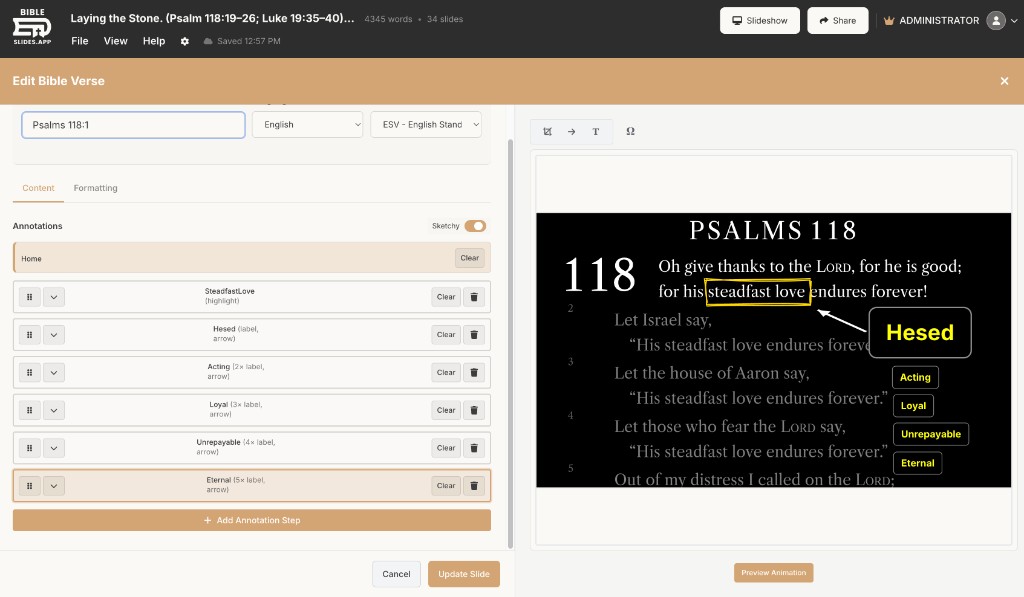
Re-open the slide to add an annotation on the phrase you will emphasize. In the video, the example is John 3:16: underline or box world when you make the point that God loves the entire world, not only the “good” people.
Annotations are built into the Bible Verse editor — no drawing layer or second app.
Preview with practice mode
Click Slideshow, then open Practice mode. You will see:
- The projector view — what the congregation sees behind you.
- A tablet preview — what you would control from an iPad or Android tablet with speaker notes.
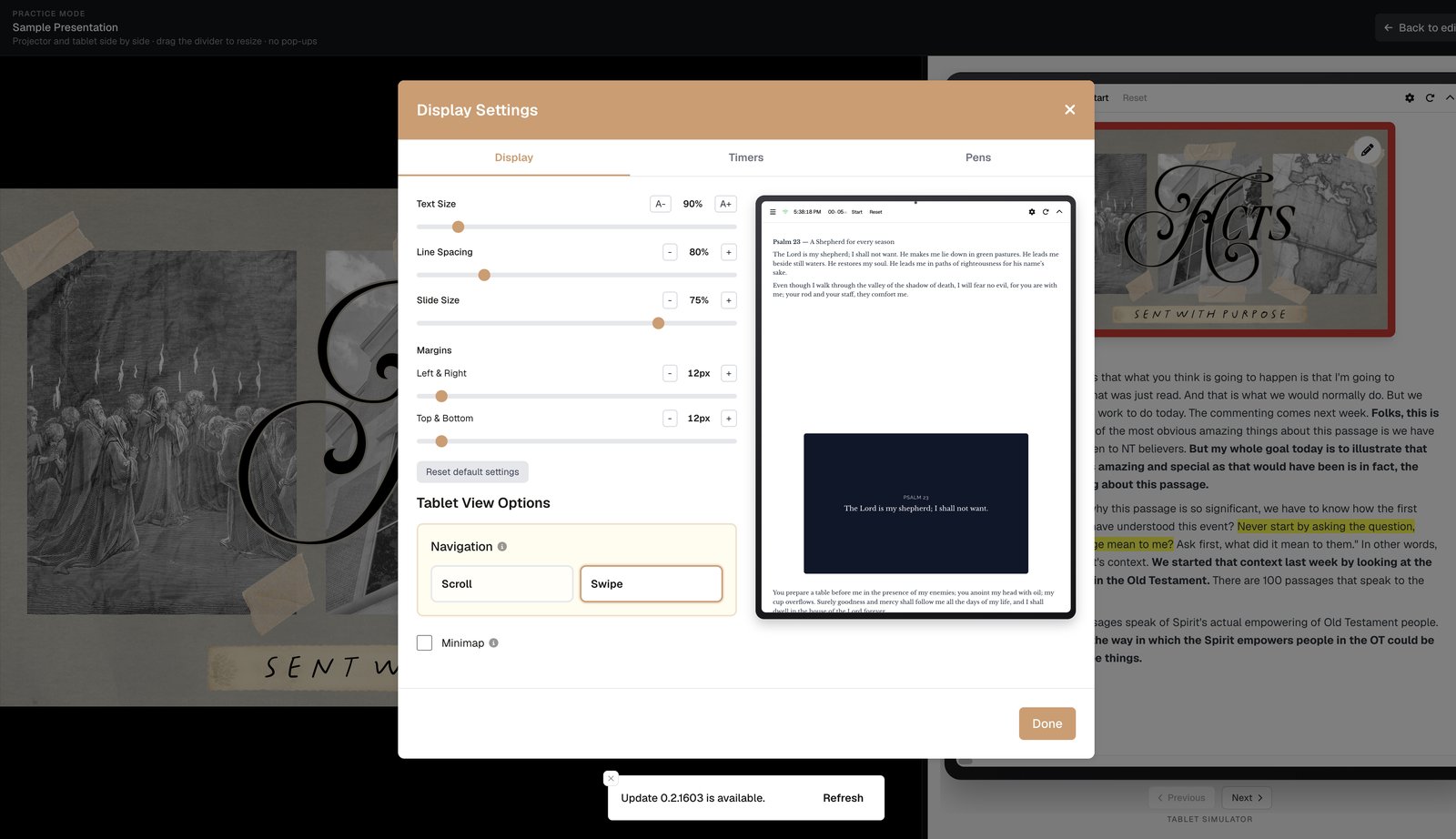
Adjust display settings (text size, margins, slide scale) until the verse reads comfortably on your room’s screen. Those settings apply across the deck.
Present verse by verse
When your slide has multiple steps or annotations, advance through them as you teach — reveal Jerusalem, then Judea, then Samaria, then the ends of the earth, or in a simpler passage, unfold one verse at a time. Tap or click the step chips on the tablet; the main screen follows.
Try it this week
- Go to Projects and open or create a deck.
- Add a Bible Verse slide and enter your Sunday passage.
- Add one annotation on the phrase you will explain.
- Run Practice mode once before service.
Bible Verse slides are included on the free plan. Start creating free — no credit card required.
More for church teams
Articles, templates, and guides for Bible teaching and presentation.
Back to Resources